Printing barcode labels
Print labels on a roll with a label printer (recommended), or on A4 sticker sheets with your regular printer.
Updated October 20, 2026
There are two ways to print labels: from a roll or on A4 sticker sheets. The first time, you choose how. After that, EasyConsign remembers it for your shop.
We recommend a thermal roll. Every label comes out exactly right, so you never have to fiddle with the alignment. You also don't have to choose where to start on each sheet. That makes it quicker.
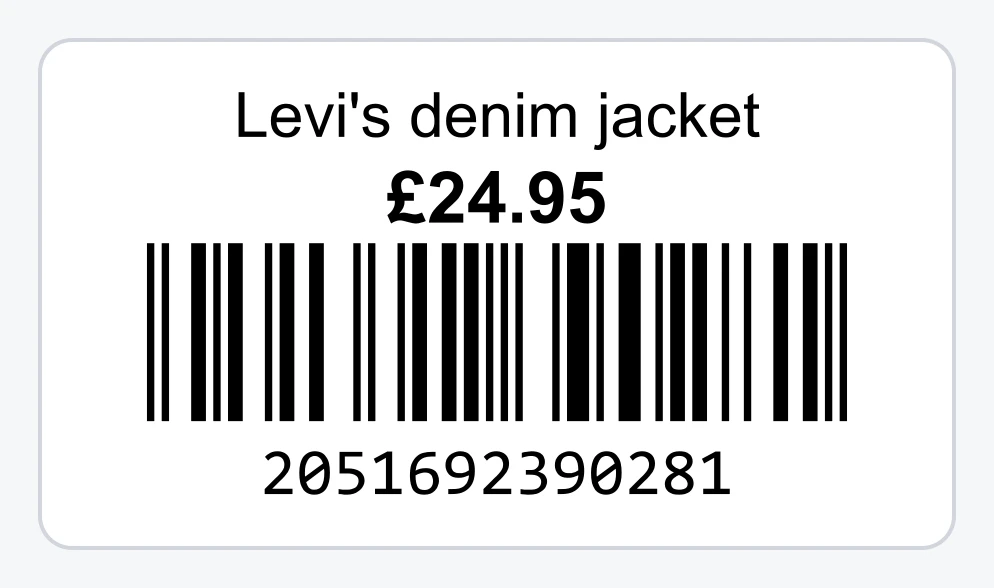
This is what a label looks like: the name and price on top, the barcode below.
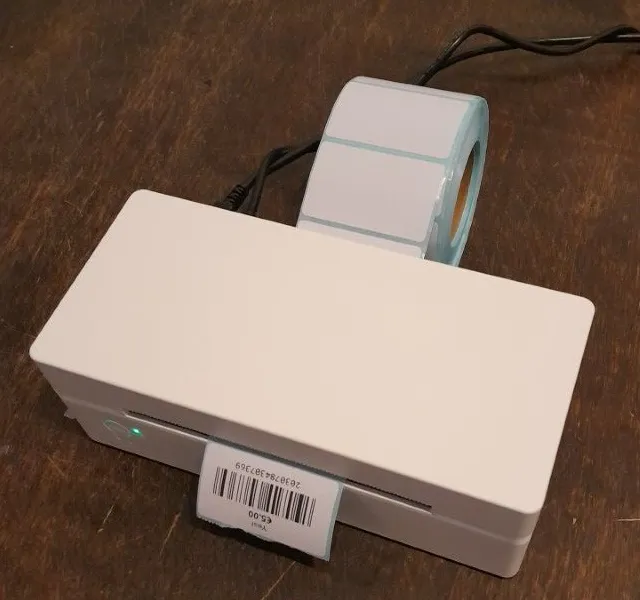
A label printer with a roll (recommended)
A thermal label printer prints one label at a time from a roll. No ink needed, and you print exactly as many as you need.
- Go to Barcode labels > Print items and choose Thermal roll.
- Enter the size of the labels on your roll.
A4 sticker sheets
Sticker sheets from brands like Avery or Herma, for your regular printer at home or in the shop.
- Go to Barcode labels > Print items and choose Sheets.
- Search for your sheet by brand and product number, for example L7654. The number is on the box.
- Your number isn't listed? Search by the label size instead, for example 45.7. Or choose Own sizes and enter them yourself.
Buying new sheets? Check first whether they're in the list. That saves you measuring.
A sheet that's partly used
In the preview, click the first label that's still free. EasyConsign starts there, and after printing it remembers where you left off.
Printing
Items go onto the print list when you save them with Save and print barcode, or with the Add to print list button in the item list. The Print items page shows the list and a preview. Click the print button. After printing, the items come off the list.
Something went wrong, like a jammed sheet? Choose Print again or Back on the print list.
Printing loose barcodes beforehand
Under Barcode labels > Print loose barcodes, you print a stack of barcodes that don't belong to an item yet, on a roll or on sheets. Stick one on an item and scan it into the Barcode field when you add the item.
Barcodes not lined up?
Not every printer is accurate to the millimeter. Are the barcodes sliding off the labels? Adjust the settings and print a test sheet on plain paper. In the print dialog, set the scale to 100% or Actual size, not Fit to page.