Setting up the receipt printer
In five steps, the register prints the receipt right away, without a print dialog.
Updated October 20, 2026
The register prints the receipt through Firefox. With this setup, the receipt comes straight out of the printer, without you clicking Print first.
1. Connect the receipt printer
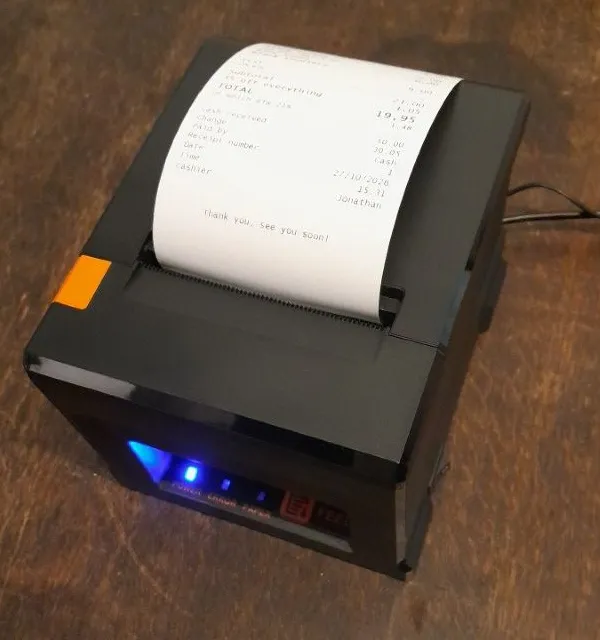
Connect the printer with the USB cable and switch it on. Install the driver: it often comes on a USB stick or CD with the printer, or you'll find it on the maker's website. Then check that the printer is in your computer's list of printers.
We strongly recommend a printer with USB. With Bluetooth, we can't promise it will work. Many Bluetooth printers don't show up as a printer on your computer, and battery printers often switch themselves off after a few minutes. Still want Bluetooth? Read Bluetooth after all? at the bottom first.
2. Print a test receipt in Firefox
Open the register in Firefox and ring up a test sale. Firefox's print dialog opens.
- Choose your receipt printer as the printer.
- Set Margins to None.
- Under paper size, choose the width of your receipt roll, 58 mm or 80 mm. Choose the same width in EasyConsign, in the first step of the receipt printer setup.
- Click Print.
Firefox remembers these choices for next time.
3. Turn off the print dialog
- Type about:config in Firefox's address bar and press Enter.
- Click Accept the Risk and Continue.
- Search for print.always_print_silent.
- Not there yet? Choose Boolean and click the plus. Set it to true.
From now on, Firefox prints straight to the printer you used last.
4. Use that Firefox only for the register
With this setting, Firefox prints everything without asking, even a regular web page. So use this Firefox only for the register. Want to browse the web on the same computer? Use another browser for that, or create a separate Firefox profile for the register.
5. Nothing comes out?
- Is the printer on, and is there paper? Is the roll in the right way, with the shiny side facing the print head?
- Set print.always_print_silent back to false for a moment and print again. Choose the right printer in the print dialog.
- Is the receipt too narrow or too wide? Check that the paper size matches your roll.
Which printer to buy is in What equipment do you need?
A different receipt printer
Firefox prints silently to the printer it used last. Got a new printer, or did receipts stop printing? Then they may still be going to the old one.
- In about:config, set print.always_print_silent to false.
- Print a test receipt at the register. The print dialog opens.
- Choose the new printer, margins None, and the paper size of your roll. Click Print.
- Set print.always_print_silent back to true.
- In EasyConsign, choose the width of the new roll in the receipt printer setup, 58 or 80 mm.
Bluetooth after all?
We advise against it, and we can't guarantee it will work. It only works if your computer sees the printer as a real printer. Many cheap Bluetooth printers only show up as a COM port after pairing, and Firefox can't use that. This is how to turn it into a printer on Windows:
- Pair the printer. Go to Settings > Bluetooth & devices > Add device and choose the printer. If Windows asks for a code, try 0000 or 1234.
- Find the COM port. Under Bluetooth & devices, click More Bluetooth settings, then the COM Ports tab. Note the port marked Outgoing next to your printer's name, for example COM3.
- Install the maker's driver. For small receipt printers, it's often called POS-58 or POS-80. It won't work without a driver.
- Link the driver to the port. Go to Printers & scanners, choose the printer, open Printer properties, and on the Ports tab choose the COM port from step 2.
- Print a test page from Windows. If it comes out, continue with step 2 at the top of this page.
Good to know:
- Switch the printer on before printing the first receipt of the day. A battery printer that has switched itself off misses the receipt.
- On a Mac, many of these printers have no driver. Then it won't work.
- Not working? Choose a printer with USB. See What equipment do you need?