Level 2, lesson 2 of 5 · 4 min
Adding items
Adding an item with your phone, with a photo, a price and a consignor.
When someone brings in a bag of clothes, you put each piece in EasyConsign. That's called adding an item. It's quickest with your phone in your hand.
Adding an item
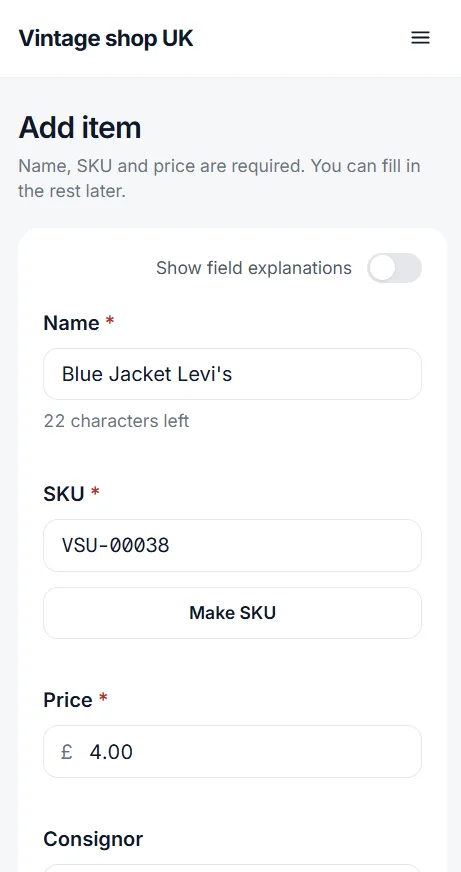
Open Items > Add item. On your phone, first tap Take photo: the camera opens and you take the photo. Then fill in:
- the name, short and clear, because it goes on the receipt: Levi's denim jacket,
- the price: what the customer pays,
- the consignor and the percentage the consignor gets.
Selling something from your own stock? Leave the consignor empty.
A whole bag in a row
Everything from one bag usually comes from the same consignor. Then check Keep consignor and percentage for the next item. After saving the form is empty, but the consignor and percentage stay. That saves a lot of tapping.
Save with Save and print barcode. The item then goes on the print list. You print the labels later in one go, on the computer.
Margin goods or not
For each item you also choose whether it's margin goods. That's almost always the case for secondhand things from consignors and private people. Only new things you bought with BTWVAT aren't margin goods. The difference matters for BTWVAT. Level 4 is all about that.
Fill in later
Fields like Description, Located in shop and Categories can stay empty. You can always open an item later and add to it, from the computer too.
Want to know more?
The help center shows exactly which buttons to use.
Read the guide: Adding items with your phone