Level 2, lesson 5 of 5 · 4 min
Setting up the register
Setting up Firefox as a register, logging in with a register code and the receipt printer.
Your items are in and have a label. Now you set up the register, on the computer at the counter.
Why Firefox?
The register works in the Firefox browser. It's free, and you install it like any other program. Firefox can send a receipt straight to the receipt printer, without a print window opening first. That's why the register uses Firefox.
Setting up this browser as a register
The register only works on a computer you set up as a register. That way nobody outside your shop can log in to your register, not even with someone's register code.
- Open EasyConsign in Firefox, on the computer at the counter, and log in.
- Go to Settings > Registered browsers/devices.
- Fill in a name, for example Counter, and click Set up this device.
You do this once per computer.
Logging in at the register
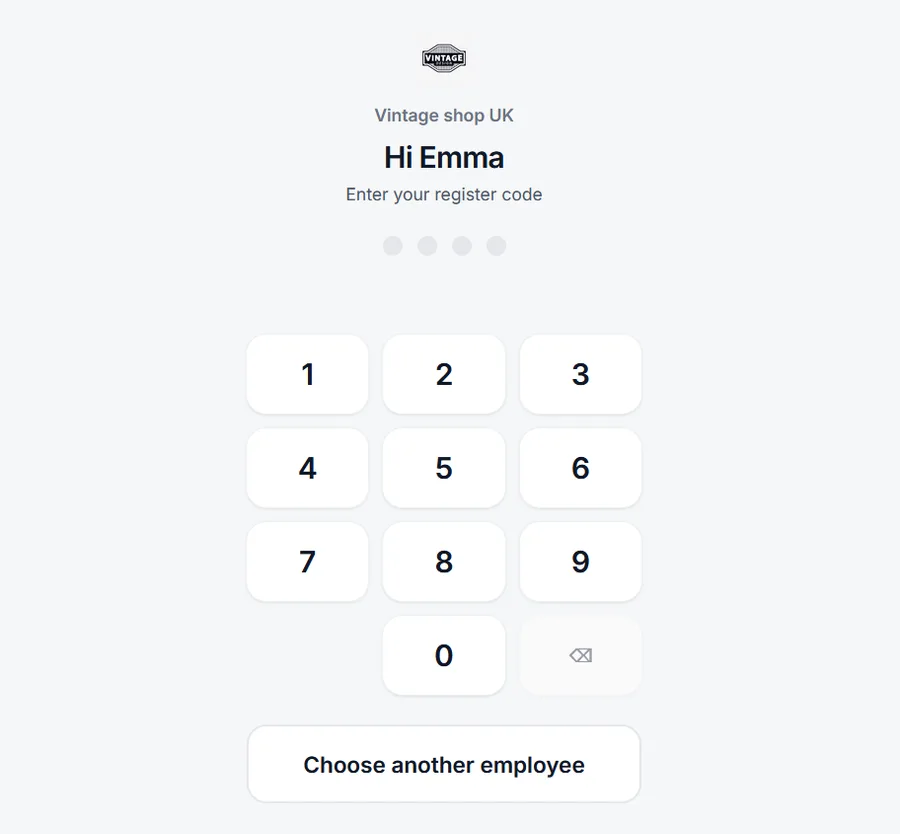
Employees go to easyconsign.app/pin, pick their name and type their register code. After 2 minutes without use the register locks. Then the next person logs in with their own code.
The receipt printer
At the register you click Set up printer and follow the steps. You choose the width of your roll, print a test receipt and then switch the print window off. From then on every receipt comes straight out of the printer.
Want to know more?
The help center shows exactly which buttons to use.
Read the guide: Setting up a register or phone